

Апісанне
Tired of editing theme files to add custom scripts or styles?
WP Coder lets you insert custom HTML, CSS, JavaScript, and PHP snippets directly from your dashboard — no coding in theme files required. Gain full control and flexibility over your site.
Documentation | Upgrade to Pro
Why WP Coder?
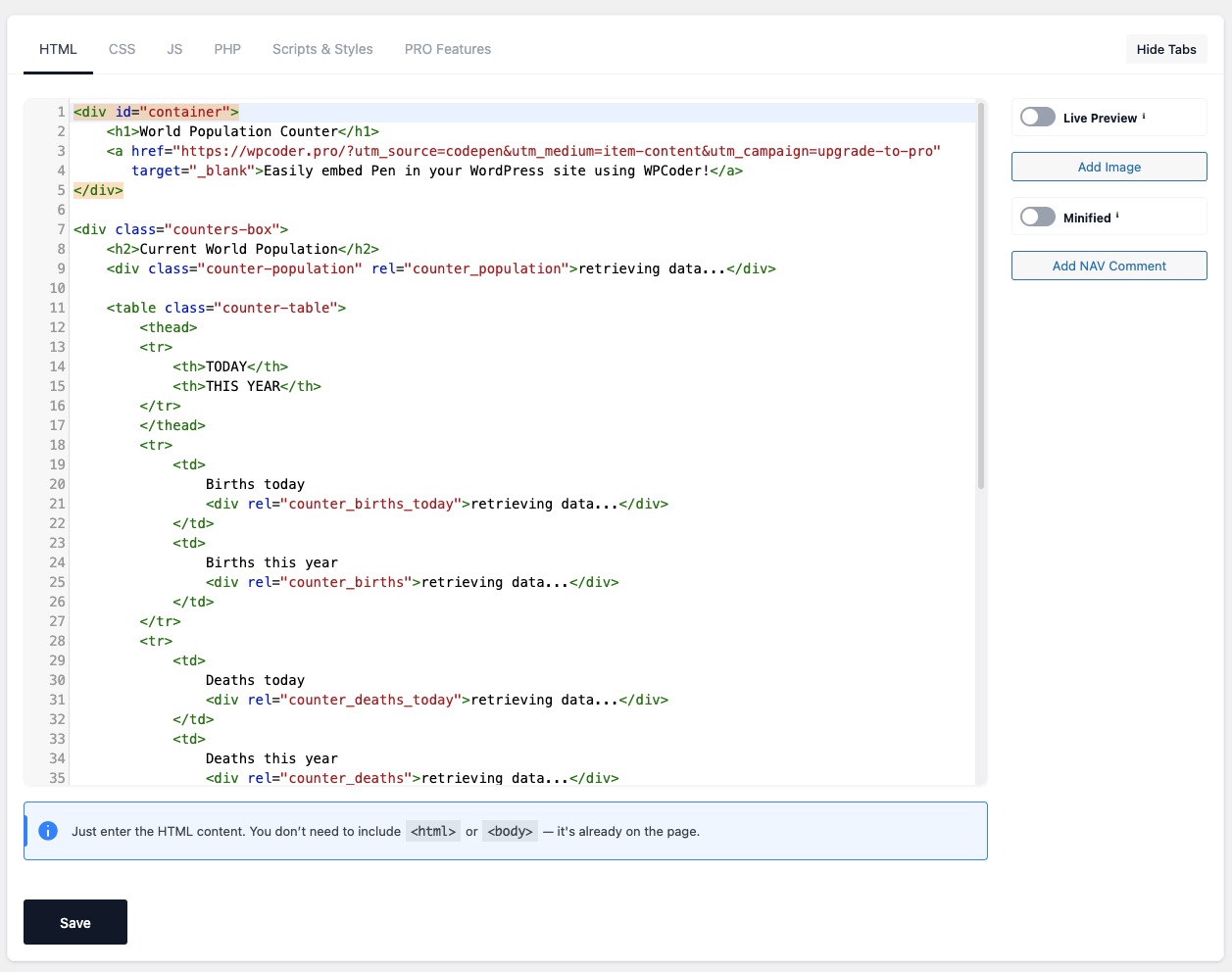
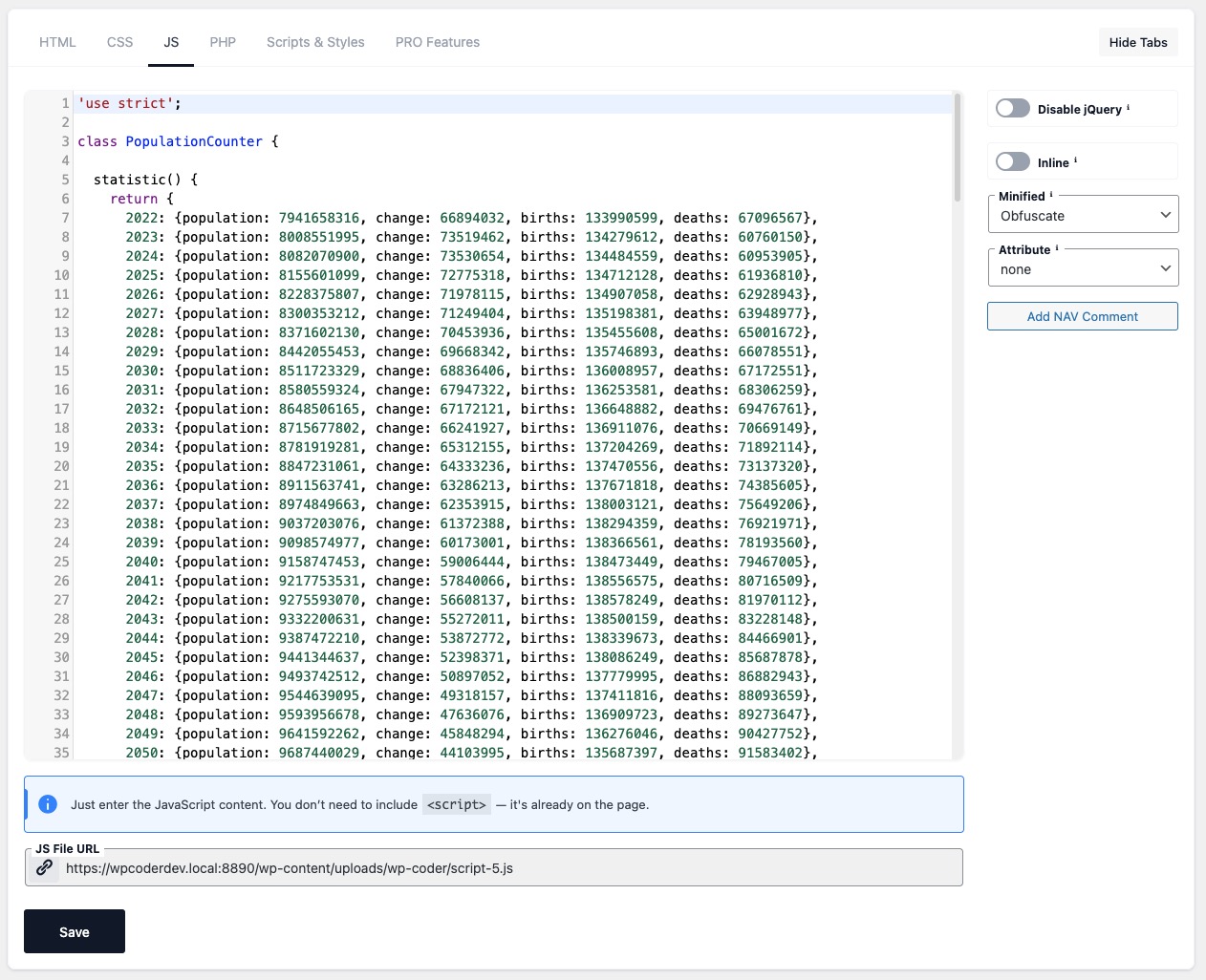
- All-in-One Code Editor: Tabbed editor for HTML, CSS, JS & PHP with CodeMirror syntax highlighting.
- Gutenberg Block: Insert snippets directly in the block editor with live preview and custom attribute support.
- Shortcode Integration: Use
[wp_code id="X"]to embed snippets anywhere. - Live Preview: Instantly preview HTML & CSS without reloads in both the backend and Gutenberg.
- Performance Ready: Minify CSS/JS, obfuscate JavaScript, and control script loading with
async/defer.
Ideal For
- Developers: Test snippets, hooks, and debug quickly.
- Marketers: Insert tracking pixels, analytics, and ad scripts.
- Designers & Bloggers: Customize layouts, styles, and enhance engagement.
Key Features
- Insert HTML, CSS, JS, and PHP via powerful shortcodes.
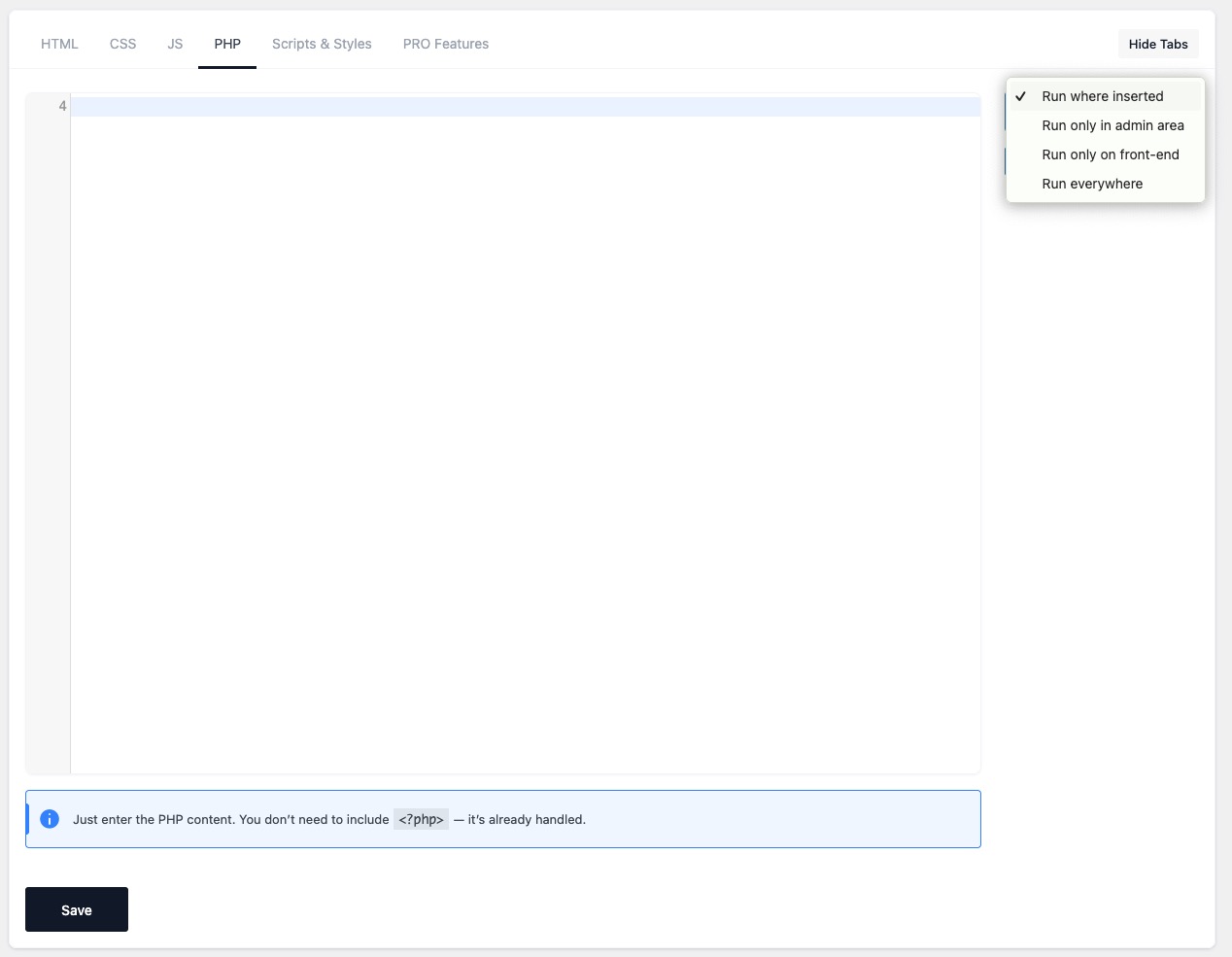
- Smart PHP handling: run in admin, front-end, everywhere, or only where inserted.
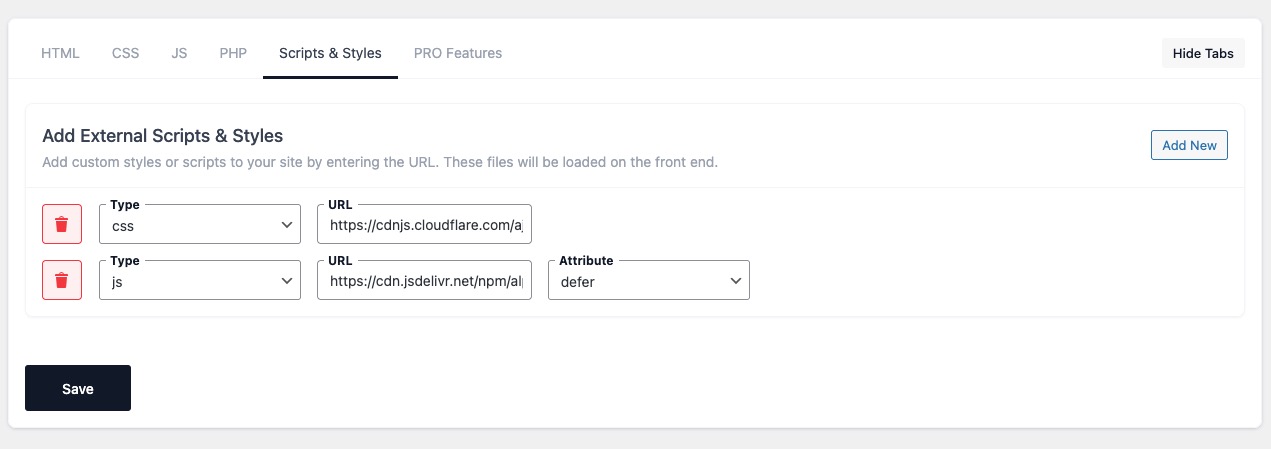
- Include external libraries (Google Fonts, CDN scripts & styles).
- Test Mode: Preview snippets safely before going live.
- Import/Export snippets and settings between sites.
- JavaScript Obfuscation: Protect your scripts with Dean Edwards’ Packer.
- Customizable Interface: Hide unused editor tabs (HTML, CSS, JS, etc.) for a cleaner workflow.
- NAV comments: Add inline navigation markers for faster code editing.
- Lightweight & secure — built for performance.
Included Tools:
Integrations
- Google Tag Manager (GTM) integration with user role controls.
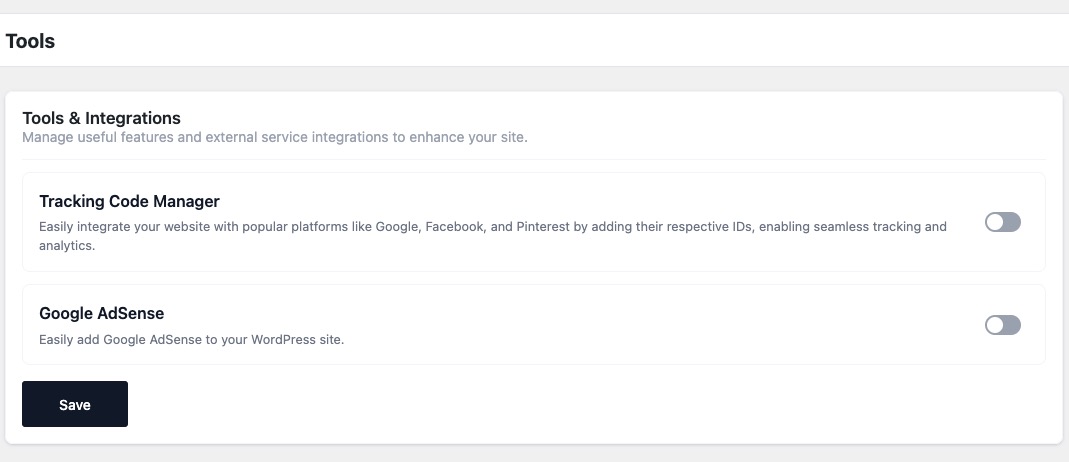
- Google Analytics, Facebook Pixel, and Pinterest Pixel integration.
- Google AdSense integration with the option to disable ads for selected user roles.
Content & Templates
- Markdown Editor – Disables Gutenberg and TinyMCE, replacing them with a Markdown editor powered by CodeMirror.
Developer Tools
- Debug Log management (enable/disable and clear log).
- Show Page Debug Info – Display technical info for the current request in the Admin Bar (template, query type, object, body classes). Admins only.
- Theme Switcher – Quickly switch between installed themes directly from the admin bar.
Included Snippets:
Editor & Content
- Disable Gutenberg Editor
- Remove Gutenberg Block CSS
- Disable Widget Blocks
- Enable Shortcode Execution in Widgets
- Enable Excerpt for Pages
- Open External Links in New Tabs
- Change “Read More” Text
Admin Interface Tweaks
- Disable Screen Options Tab
- Disable Welcome Panel
- Duplicate Posts
- Disable Admin Bar
Login & User Access
- Disable Login Page Language Switcher
- Disable Login by Email
- Disable Admin Password Reset Emails
- Custom Login Logo
- Custom Login Redirect URLs
- Change Redirect After Login
- Change Redirect After Logout
Media & Embeds
- Enable SVG Upload
- Force Lowercase Filenames
- Default ALT Text for Avatars
- Enable/Disable Lazy Load
- Disable Embeds
- Adjust oEmbed Max Dimensions
Core Functionality
- Disable XML-RPC
- Disable REST API
- Disable Automatic Updates
- Disable Automatic Updates Emails
- Disable Emojis
- Disable Shortlinks
- Limit Post Revisions
Comments & Feedback
- Disable Comments Globally
- Disable Comment URL Field
- Disable Self Pingbacks
- Disable Trackbacks & Pingbacks
- Disable HTML in Comments
- Limit Comment Length
Cleanup & Optimization
- Remove WP Version
- Disable Attachment Pages
- Disable RSS Feeds
- Disable Built-in Search
- Disable wlwmanifest Link
- Disable Automatic Trash Emptying
- Redirect 404 to Homepage
WP Coder simplifies your WordPress development workflow and makes customization safe, fast, and flexible!
Get started today and simplify your WordPress development workflow with WP Coder!
Quick Start Video
Plugin Demo:
Support
Need help? Ask questions and get quick answers in our support center.
Скрыншоты





Блокі
Гэты плагін прадастаўляе 1 блок.
- WP Coder Snippet
Ўсталёўка
📌 Option 1: Install via WordPress Admin
- Go to
PluginsAdd Newin your WordPress admin panel. - Search for “WP Coder” and click Install Now.
- Click Activate after installation.
📌 Option 2: Install Manually
- Download the WP Coder plugin ZIP file from WordPress.org.
- In WordPress admin, go to
PluginsAdd NewUpload Plugin. - Click Choose File, select the downloaded ZIP file, then click Install Now.
- After installation, click Activate.
📌 Option 3: Install via FTP
- Download and unzip the WP Coder plugin ZIP file.
- Upload the extracted
wp-coderfolder to/wp-content/plugins/via FTP. - Go to
Pluginsin WordPress admin and click Activate.
🚀 Getting Started
- Navigate to the
Wow Plugins → WP Codersection in your WordPress admin panel. - Click
Add New Snippetto create your first code snippet. - Configure your snippet settings (HTML, CSS, JavaScript, PHP).
- Click Save to apply your changes.
Часта задаваныя пытанні
-
Does WP Coder support Network activation?
-
Currently, WP Coder doesn’t support network-wide activation. If you’re using WordPress Multisite, activate the plugin individually on each site within your network.
-
Where can I find detailed documentation?
-
Visit our comprehensive official documentation for detailed guides and step-by-step instructions.
-
How can I use shortcode content in HTML code?
-
If you include content within the shortcode like
[wp_code id="1"]Some Text[/wp_code], you can insert this content into your HTML snippet using the variable{{$shortcode_content}}. -
Can I use shortcodes from other plugins within WP Coder snippets?
-
Absolutely! WP Coder allows you to embed shortcodes from any plugin within your HTML snippet content. You can also use WP Coder’s own shortcodes, offering enhanced flexibility for customization.
-
Tags help categorize and organize your snippets. When creating or editing a snippet, assign tags in the ‘Publish’ block to easily filter and manage your snippets later.
-
How do I use the link feature in the ‘Publish’ block?
-
The link feature helps you track where your shortcode is placed. Simply enter the URL of the page where your shortcode is inserted in the ‘Link’ field when creating or editing your snippet.
Водгукі


Удзельнікі і распрацоўшчыкі
“WP Coder – Insert & Manage Code Snippets” з’яўляецца праграмным забеспячэннем з адкрытым зыходным кодам. Наступныя людзі ўнеслі свой уклад у гэты плагін.
Удзельнікі

Перакласці “WP Coder – Insert & Manage Code Snippets” на вашу мову.
Зацікаўлены ў распрацоўцы?
Праглядзіце код, праверце SVN рэпазітарый, або падпішыцеся на журнал распрацоўкі па RSS.
Журнал змяненняў
Helpful Links
4.5.1
- Fixed: Security – restricted the Gutenberg block REST endpoints (snippet preview and attributes) to logged-in users with the
edit_postscapability, preventing unauthenticated access.
4.5
- Added: Lazy load option for images
- Added: Google Tag Manager integration in Tools & Integrations
- Fixed: Snippet Open External Links in New Tab now correctly identifies internal links
4.4
- Added: Gutenberg block – insert and manage WP Coder snippets directly inside the WordPress block editor with live preview.
4.3.1
- Fixed: includes css to Live preview
4.3
- Added: Markdown Editor in Tools for writing with Markdown syntax.
- Added: Debug Tools section in Tools, including:
- Show Page Debug Info
- Theme Switcher
- Plugin Switcher
- Improved: Tools page layout – tools are now grouped into sections for easier navigation.
4.2
- Added: Debug Log page in WP Coder admin menu with options to enable/disable logging and clear log.
- Added: Admin bar indicator with link to Debug Log when entries are present.
4.1
- Added: Export snippets by tags
- Added: Export selected snippets
- Added: Option to use CSS files only in Live Preview without loading them on the site
4.0.3
- Added: duplicate button for each item
- Improved: Live Preview block behavior and rendering
4.0.2
- Improved: Reorganized method order in DBManager class for better readability and maintenance
- Improved: Minor SQL formatting for consistency
- Cleaned: Minor code style improvements according to WordPress Coding Standards (WPCS)
4.0.1
- Improved: Added
matchBrackets: trueoption for the JavaScript editor to highlight matching brackets when editing code.
4.0
- Improved: Refreshed interface for better user experience.
- Added: “Open External Links in New Tab” snippet.
- Added: “Redirect 404 to Homepage” snippet.
- Added: “Limit Comment Length” snippet.
- Added: “Disable HTML in Comments” snippet.
- Added: “Disable Trackbacks & Pingbacks” snippet.
- Added: Live preview feature for HTML & CSS snippets.
3.6.1
- Fixed: Security issue in escaping within list files.
3.6
- Added: Custom locations for PHP snippet inclusion.
- Added: Option to hide tabs in settings.
- Fixed: Admin style compatibility for Safari browser.
3.5.2
- Fixed: Minor admin style improvements.
- Fixed: Various minor bugs.
3.5.1
- Changed: Adjusted user permissions to use the plugin.
3.5
- Added: “Tracking Code Manager” tool for easy integration of analytics pixels.
- Added: “Google AdSense” integration tool.
- Added: User roles support for “Disable WP Admin Bar” snippet.
- Improved: Updated back-link functionality.
3.4
- Added: Pre-set popular snippets page.
3.3
- Added: Button to insert images in HTML snippets.
- Added: HTML Minification tool.
- Improved: Enhanced CSS Minification tool.
3.2.1
- Fixed: Minor database issue.
3.2
- Added: “Add New” and “All Codes” buttons in editor.
- Fixed: Improved admin styling.
3.1.1
- Fixed: Database save issue.
3.1
- Added: Global PHP snippet feature.
- Added: Content handling inside shortcodes.
- Added: Copy shortcode button.
- Improved: More flexible file inclusion management.
- Changed: Shortcode updated to
[wp_code].
3.0.5
- Fixed: Minor update bug and admin notifications.
3.0.4
- Fixed: Updated datatable handling.
3.0.3
- Fixed: Inline scripts/styles management.
3.0.2
- Fixed: Execution order for scripts and styles.
3.0.1
- Fixed: Updating and saving snippets.
- Fixed: Admin capability adjustments.
3.0
- Added: Test Mode and snippet Status.
- Added: Tagging and Link options.
- Added: Inline and Minified options for CSS.
- Added: JavaScript optimization options.
- Added: Export/Import feature.
- Improved: Updated database and admin interface.
2.5.6
- Fixed: Minor bug in snippet list.
2.5.5
- Fixed: General minor fixes.
2.5.4
- Fixed: Security enhancements.
2.5.3
- Fixed: Additional security improvements.
2.5.2
- Fixed: Minor issues on main plugin page.
2.5.1
- Fixed: General minor fixes.
2.5
- Added: Alternative shortcode option.
- Added: Shortcode processing within HTML snippets.
2.4
- Fixed: Handling of
<textarea>tags in HTML. - Fixed: Shortcode functionality.
2.3.2
- Fixed: Snippet deletion and database saving issues.
2.3
- Fixed: Minor bug fixes.
2.2
- Fixed: Improved script/style loading order.
2.1
- Fixed: Database save issue resolved.
2.0
- Added: CodeMirror integration.
- Optimized: Improved file storage efficiency.
- Improved: Admin interface styling.
1.1
- Fixed: Shortcode display issue in content.
1.0
- Initial release.